
Help
Help and guides
Short guides to get your PTA up and running, a step-by-step guide to using your own domain, and how-to videos.
Getting started
Your first evening with PTA Central
You can do all of this in an evening. Go through it in order, or jump to whatever you need.
- 1
Sign up and choose your address
Go to Start your free trial. Tell us your PTA’s name and school, choose your web address (like hillside.ptacentral.co.uk) and pick your plan by school size. We email you a 6-digit code to check it’s really you, and your site is ready about a minute later.
- 2
Your first sign-in
You’re signed straight in to your members’ area. Because you’re the super admin, you’ll set up two-step sign-in first. A passkey is easiest: it uses your phone’s or computer’s Face ID, fingerprint or PIN. Save your recovery codes somewhere safe; they get you in if you lose your phone.
- 3
Add your logo and details
In Settings → PTA details, add your PTA’s full name, school, logo and two colours, and your charity number if you have one. Add your classes in Settings → Classes, so parents can choose them on forms.
- 4
Invite your committee
In Members, press Invite someone and choose their role: chair, treasurer, secretary, committee member, class rep, helper, teacher or Santa’s elf. Each role sees only what it needs. They get an email to choose a password.
- 5
Set up your money
In Money → Set-up, add your bank account and any cash box with the balance on the day you start. In Settings → Payments, add your bank details for payments by bank transfer. To take cards online, connect your PTA’s own Stripe account in Settings → Integrations; SumUp card readers connect there too.
- 6
Make your website yours
In Website, edit your home page, about page and FAQs, and add news. Use Preview before you publish. Choose whether search engines may list your site, and whether parents can find you in Find your PTA, in Settings → PTA Central account.
- 7
Plan your first event
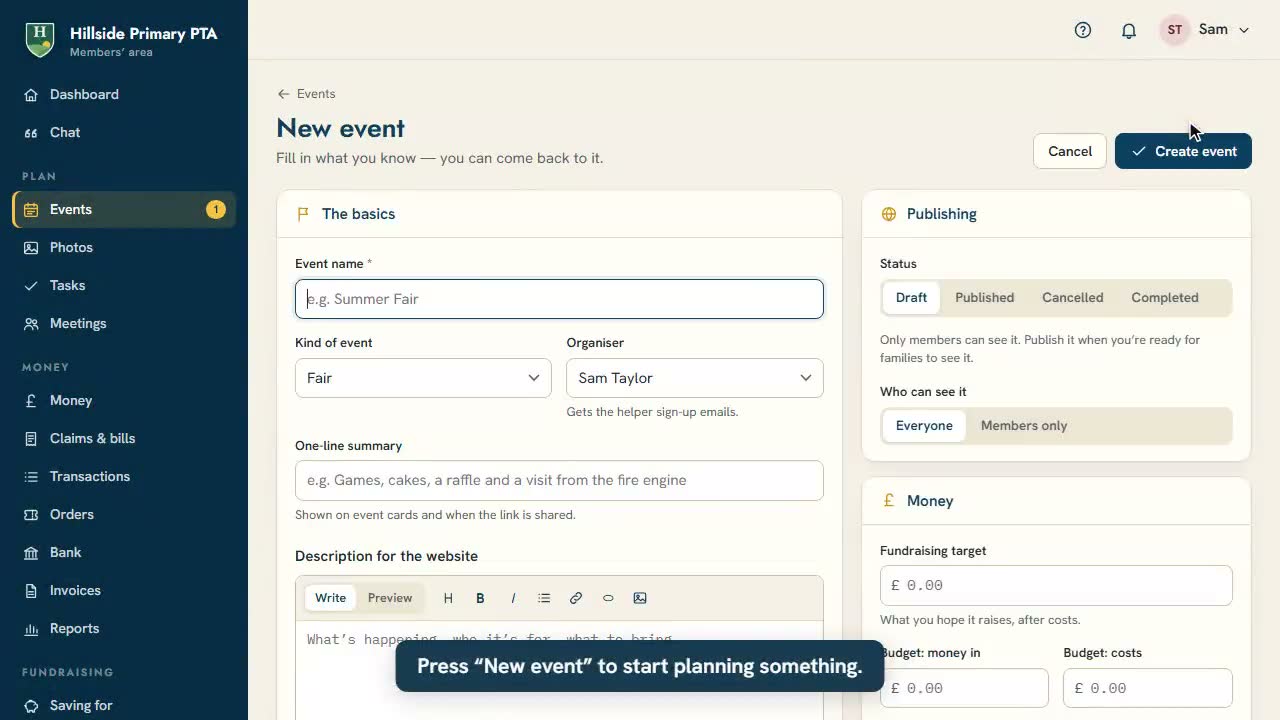
In Events, press New event. Add tickets, volunteer shifts and stall bookings if you need them, then publish it. It appears on your website straight away, with an add-to-calendar button.
- 8
Get the app
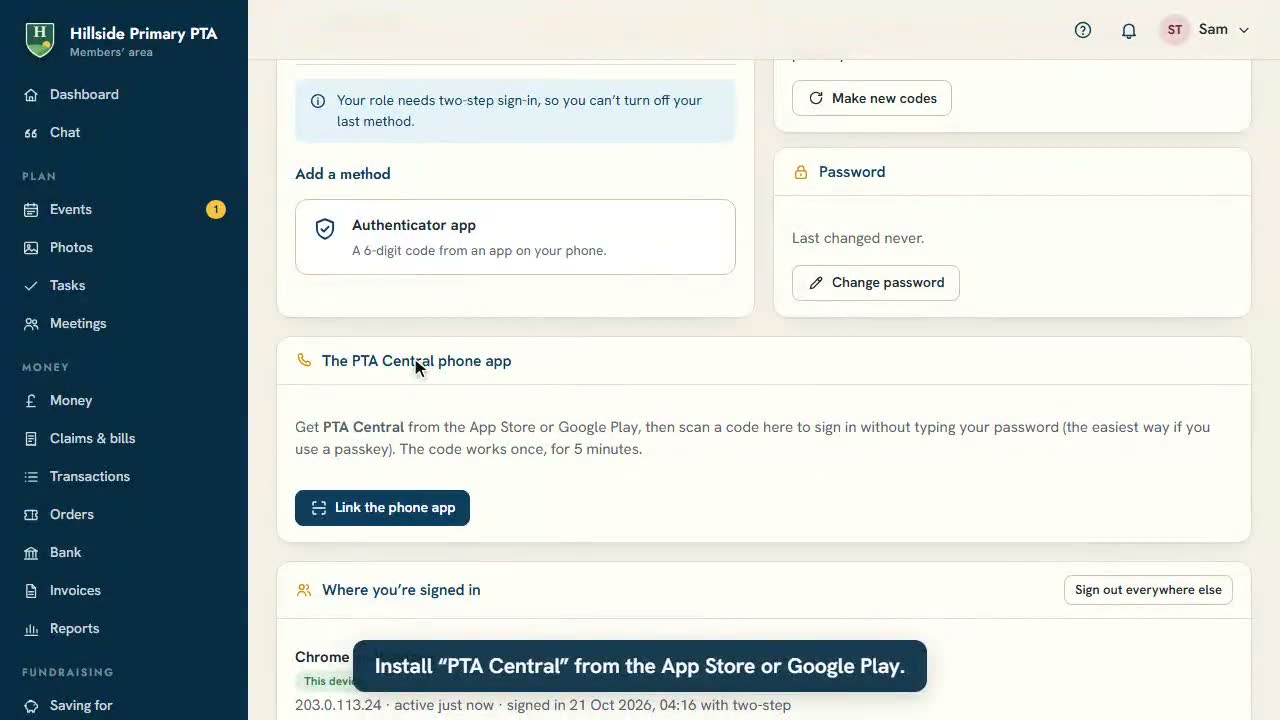
Everyone can download the PTA Central app for iPhone or Android, type your PTA’s address and sign in. The QR code under Security in the members’ area links the app in one scan.
Step-by-step guide
Use your own domain
Already have a web address like yourpta.co.uk? You can use it for your PTA’s website instead of your PTA Central address. It takes about 15 minutes, then a short wait.
Before you start, you’ll need
- The sign-in for the company you bought your domain from (GoDaddy, 123 Reg, IONOS and so on).
- Your PTA’s super admin sign-in for PTA Central.
You don’t need to move your domain, and you don’t need to move your email.
-
Add your domain in PTA Central
In your members’ area, go to Settings → PTA Central account and add your domain, typed like yourpta.co.uk. The page then shows the server address to use: an IP address made of four numbers, which is 16.61.254.233.
-
Add two records where you bought your domain
Sign in to your domain company and find the DNS settings (sometimes called DNS records, zone file or advanced DNS). Add these two records:
DNS records to add Type Name (or host) Value (or points to) A @ 16.61.254.233 CNAME www yourpta.ptacentral.co.uk
Your own PTA Central address- @ means the domain itself (yourpta.co.uk). Some companies want that box left empty, or want the whole domain typed in.
- If your company won’t let you add a CNAME for www, add an A record for www instead, pointing to the same server address as @.
- If there are already A records for @ or www (often a “parked” page), change or delete them so only ours are left. Delete any AAAA records for @ and www too.
- Leave the TTL (time to live) as it is.
Keep your email working
Don’t touch your email records. Moving your email is not needed. Leave your MX records, and any TXT records for SPF, DKIM or DMARC, exactly as they are. Deleting them would stop your PTA’s email from working.
-
Wait, then check
Changes usually work within an hour, but can take up to 48 hours to reach everyone. We check your domain automatically every 10 minutes for a month, or you can press Check now next to it in Settings → PTA Central account → Web address whenever you like. If something isn’t right, it tells you what it found.
-
HTTPS is set up for you
As soon as your domain points to us, we get a free security certificate for it, so it opens with the padlock (https://). You don’t need to buy one. Once it’s working, your PTA Central address redirects to your own domain, so old links and QR codes keep working.
How to check it’s worked
- Open https://yourpta.co.uk and https://www.yourpta.co.uk: both show your PTA’s site with a padlock.
- Settings → PTA Central account shows your domain as working.
- Send yourself an email at your PTA’s address, to be sure email still arrives.
Steps for popular domain companies
Wherever these say “the server address”, use the IP address shown in your dashboard. “Your PTA Central address” means yourpta.ptacentral.co.uk. Screens change from time to time, so the names may differ slightly.
GoDaddy
- Sign in to GoDaddy and open My Products. Next to your domain, choose DNS (or Manage DNS).
- Find the A record with the name @. It often says “Parked”. Press the pencil to edit it, put in the server address, and save. If there isn’t one, press Add New Record, choose type A, name @.
- Edit the CNAME record named www so its value is your PTA Central address (yourpta.ptacentral.co.uk), and save.
- If you see Forwarding set up for the domain, remove it.
123 Reg
- Sign in to 123 Reg, choose your domain, and open Manage DNS (DNS settings).
- Go to the Advanced DNS tab. Change the A record for @ to the server address, or add one: hostname @, type A, destination the server address.
- For www, delete any existing A record and add a CNAME: hostname www, destination your PTA Central address.
- Leave the MX records alone, and save.
IONOS (1&1)
- Sign in to IONOS and go to Domains & SSL. Choose your domain, then DNS from its menu.
- Edit the A record for @ (host name @) so it points to the server address. If IONOS asks about a conflicting record for its own website, let it replace it.
- Delete the AAAA record for @ if there is one: it sends some visitors to the old place.
- For www, add or edit a CNAME record pointing to your PTA Central address.
Namecheap
- Sign in to Namecheap, open your Domain List and press Manage next to the domain. Make sure Nameservers says Namecheap BasicDNS.
- Go to the Advanced DNS tab. Remove the URL Redirect Record and the parking page CNAME for www if they’re there.
- Press Add new record: A Record, host @, value the server address. Press the tick to save.
- Add a CNAME Record: host www, value your PTA Central address, and save.
Cloudflare
- Sign in to Cloudflare, choose your domain and open DNS → Records.
- Add (or edit) an A record: name @, IPv4 address the server address.
- Turn Proxy status off, so the cloud is grey (DNS only), not orange. This matters: we can’t set up your HTTPS certificate through the orange proxy.
- Add a CNAME: name www, target your PTA Central address, also with the grey cloud (DNS only). Save.
Squarespace (and Google Domains)
- Domains bought from Google Domains are now looked after by Squarespace. Sign in at Squarespace Domains and choose your domain.
- Open DNS (DNS settings). If there are Squarespace Defaults or Google Sites records you don’t use, delete them.
- Under Custom records, add a record: host @, type A, data the server address.
- Add another: host www, type CNAME, data your PTA Central address. Leave any Google Workspace (Gmail) MX records alone.
Another company? The steps are almost always the same: find the DNS settings, add an A record for @ and a CNAME for www. Stuck? Email hello@ptacentral.co.uk with the name of your domain company and we’ll help.
How-to videos
See how it’s done
Short videos recorded from the real members’ area. The same videos are in your members’ area and the app, under Help.
-
 0:27
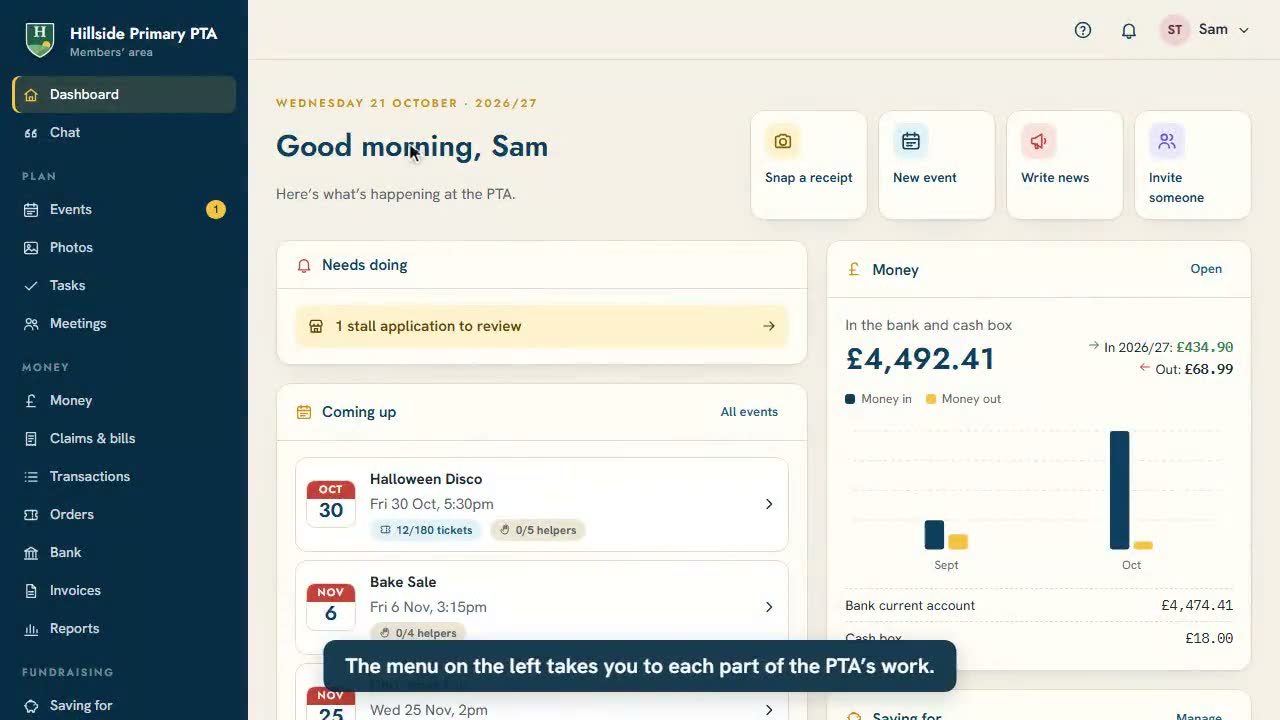
Finding your way aroundThe dashboard, the menu, notifications and your account.
0:27
Finding your way aroundThe dashboard, the menu, notifications and your account.
-
 0:20
Get the PTA Central phone appSign the app in with a QR code, then use Face ID next time.
0:20
Get the PTA Central phone appSign the app in with a QR code, then use Face ID next time.
-
 1:19
Plan an event: tickets and helpersMake a new event, add a ticket type and a helper job, then publish it on the website.
1:19
Plan an event: tickets and helpersMake a new event, add a ticket type and a helper job, then publish it on the website.
-
 1:04
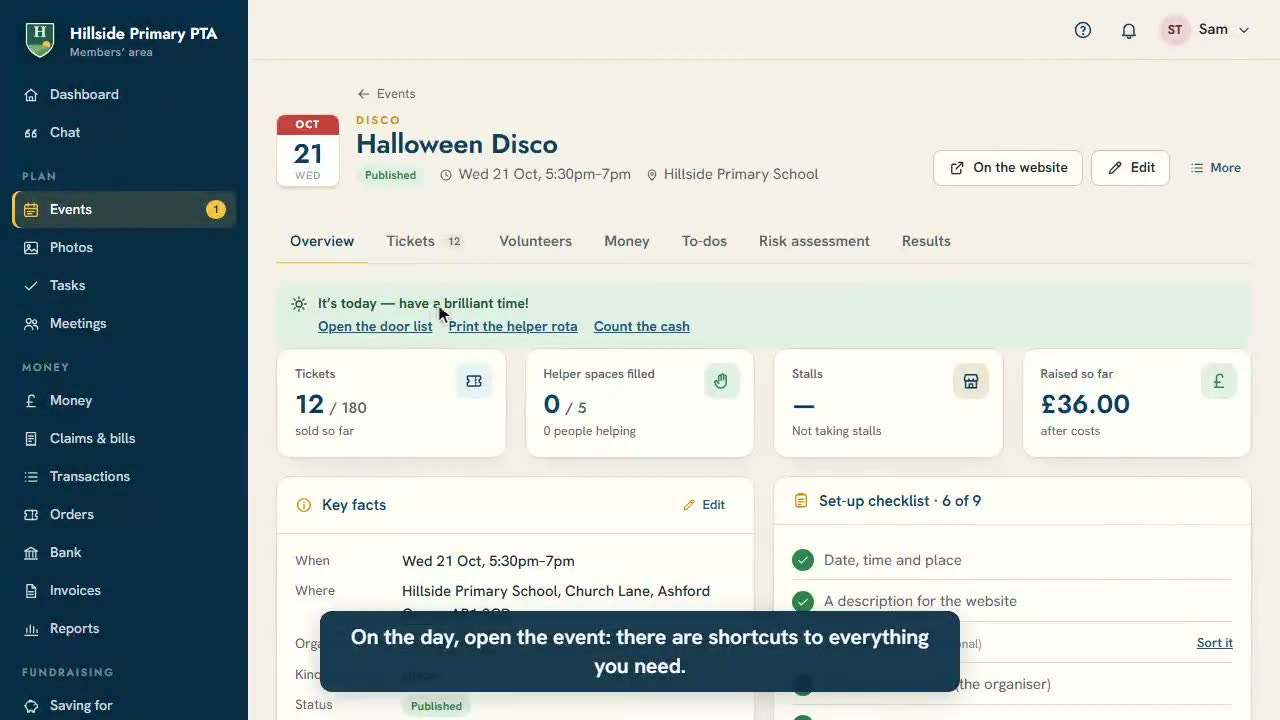
On the day: check tickets in and count the cashTick children off on the door list as they arrive, then count the takings with a second person.
1:04
On the day: check tickets in and count the cashTick children off on the door list as they arrive, then count the takings with a second person.
-
 0:43
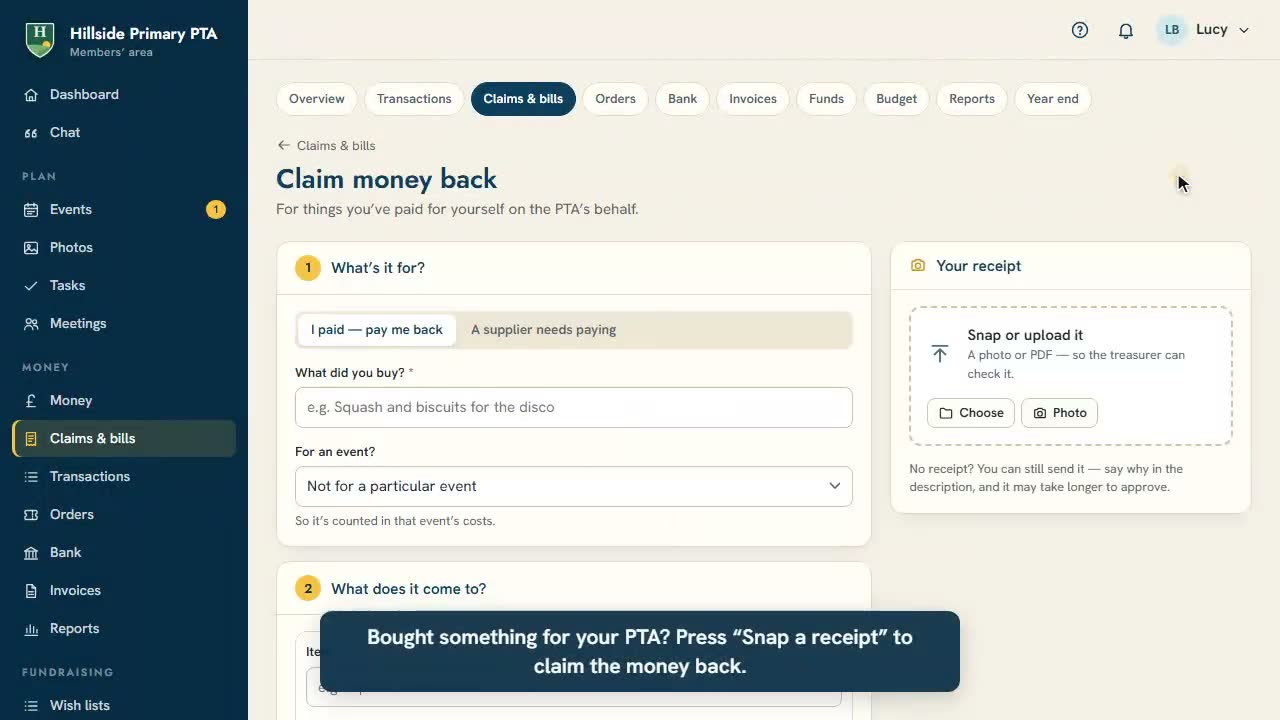
Claim back what you spentSnap the receipt, say what it was for and send it for approval, so the PTA can pay you back.
0:43
Claim back what you spentSnap the receipt, say what it was for and send it for approval, so the PTA can pay you back.
-
 0:41
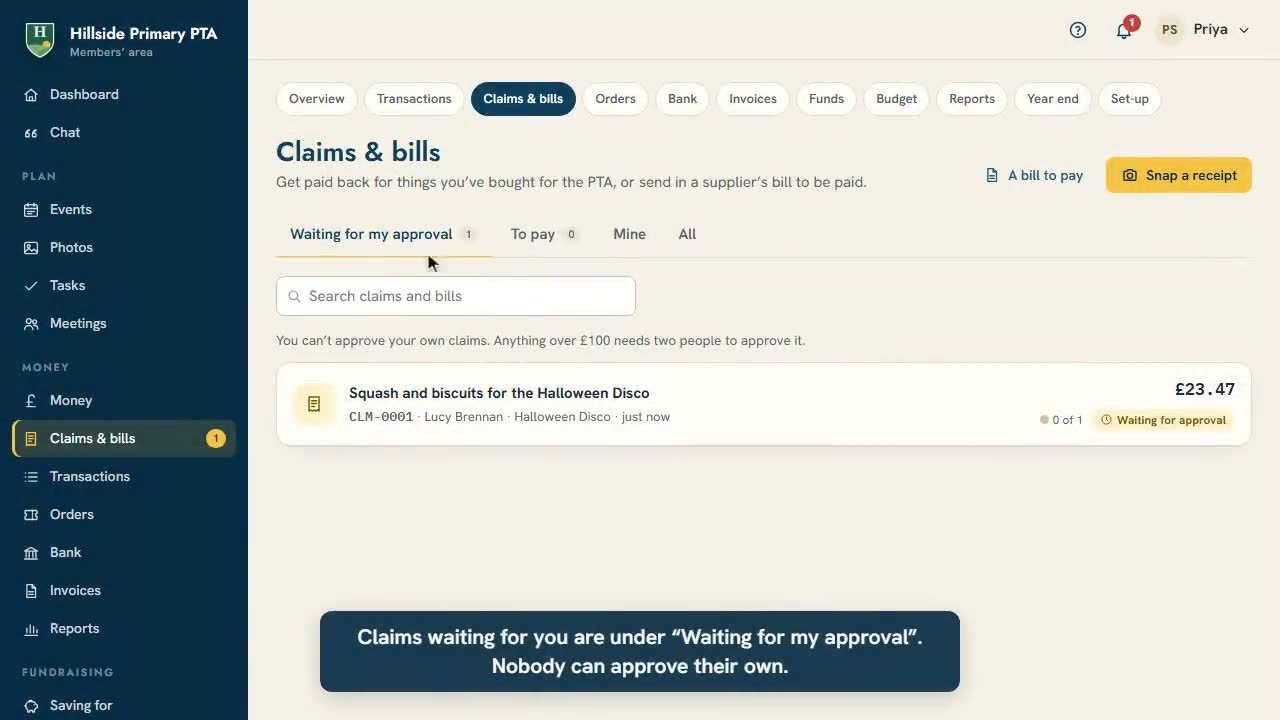
Approve and pay a claimCheck the receipt, approve the claim, pay it from the bank and record the payment.
0:41
Approve and pay a claimCheck the receipt, approve the claim, pay it from the bank and record the payment.
-
 0:49
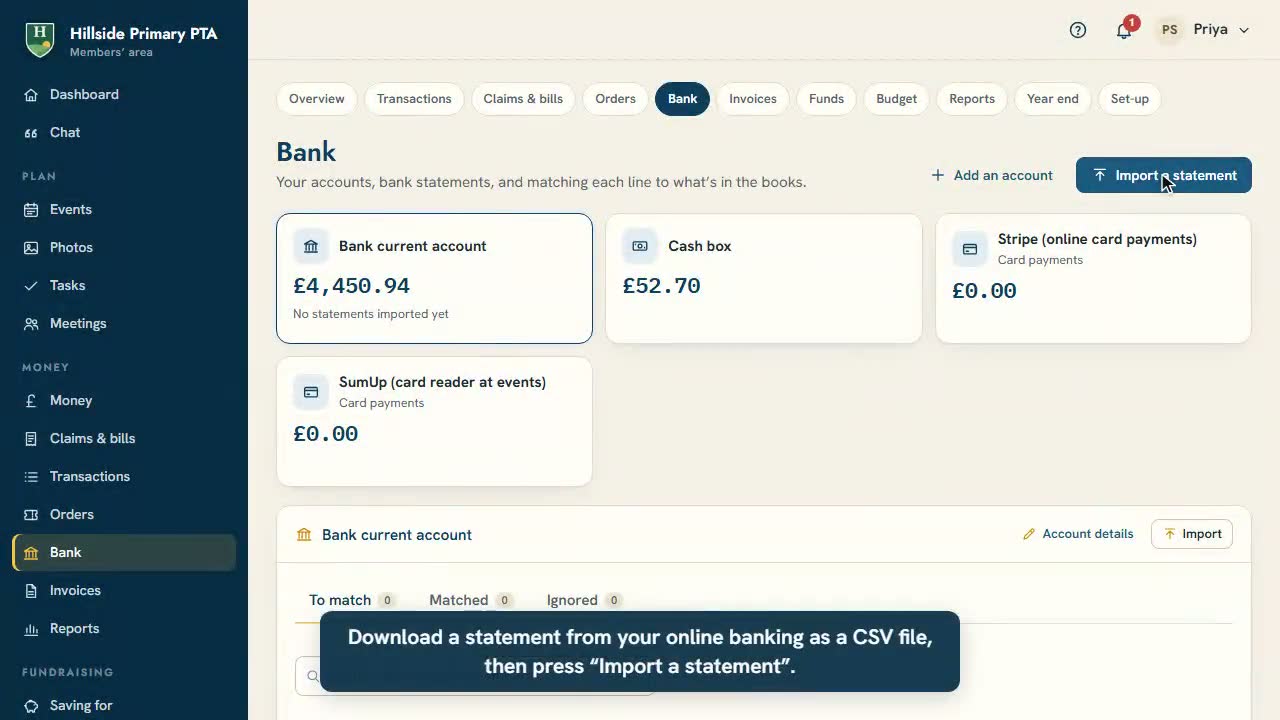
Import a bank statement and match paymentsImport the CSV from your online banking, then match each line to what’s in the books.
0:49
Import a bank statement and match paymentsImport the CSV from your online banking, then match each line to what’s in the books.
-
 0:52
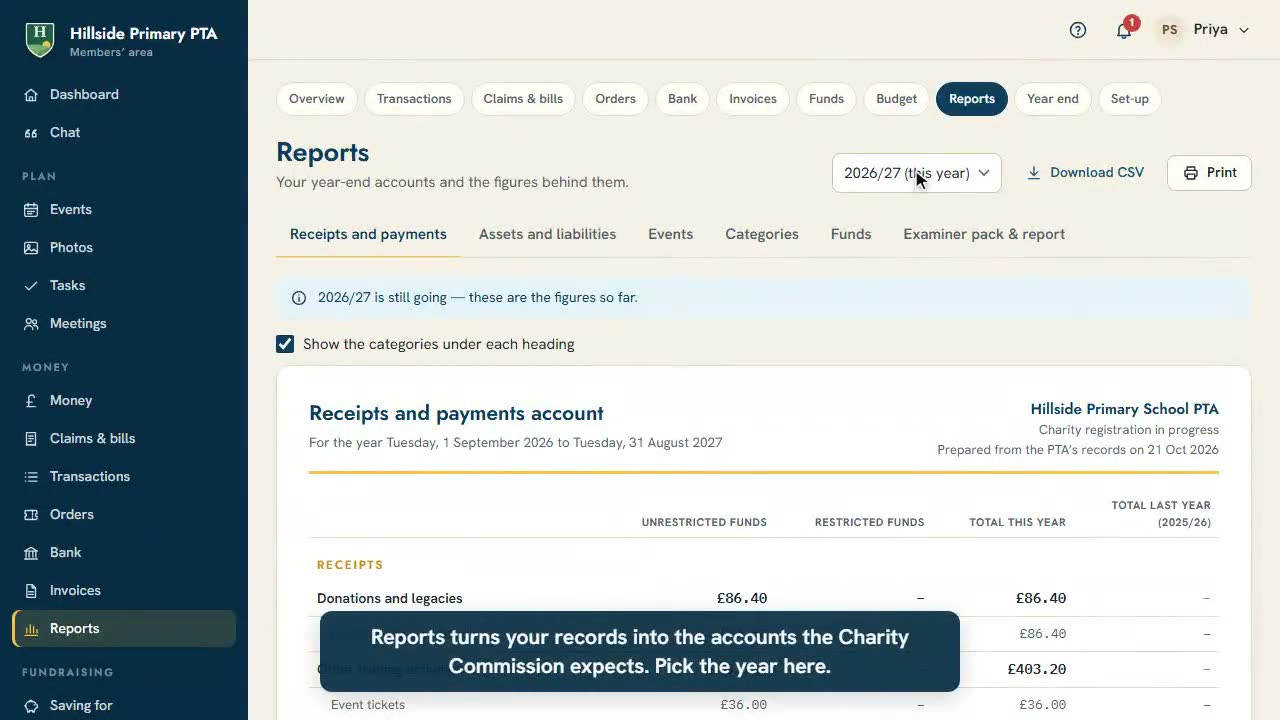
Year-end accounts for the examinerThe receipts and payments account, assets and liabilities, the examiner pack, and closing the year.
0:52
Year-end accounts for the examinerThe receipts and payments account, assets and liabilities, the examiner pack, and closing the year.
-
 0:59
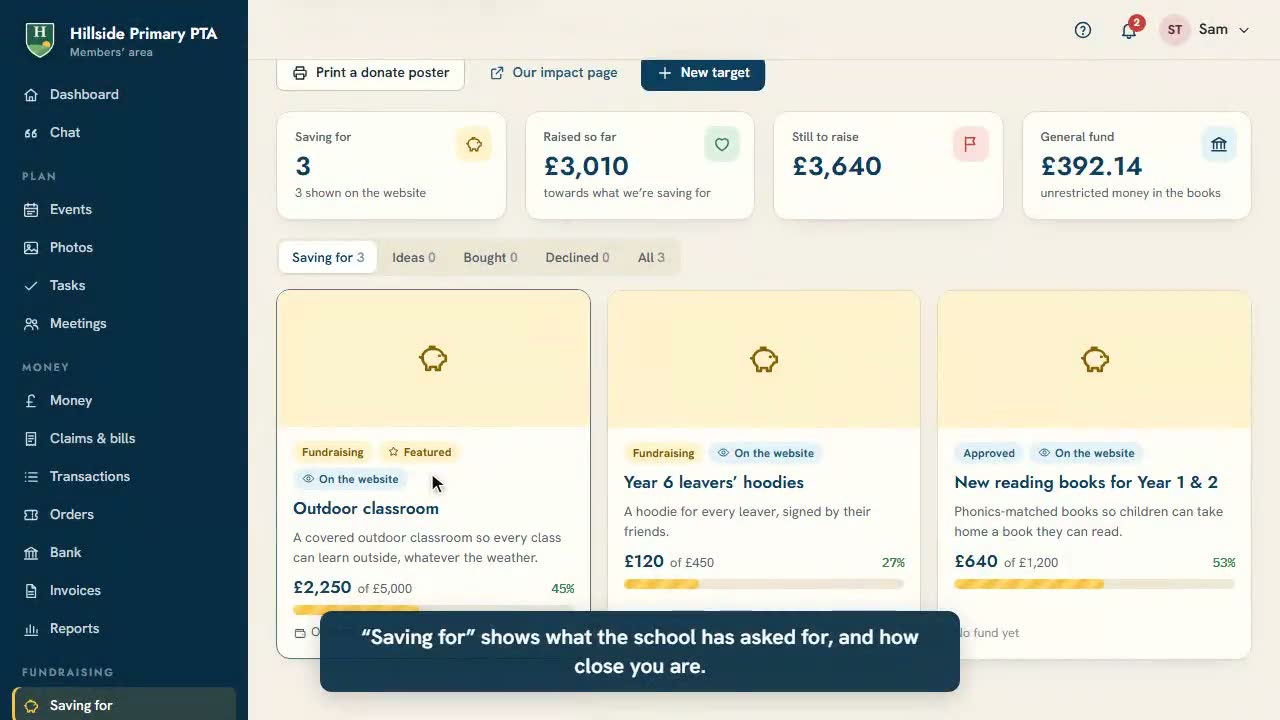
Show what you’re saving forAdd something the school needs, with its cost and a picture, and show families how close you are.
0:59
Show what you’re saving forAdd something the school needs, with its cost and a picture, and show families how close you are.
-
 0:39
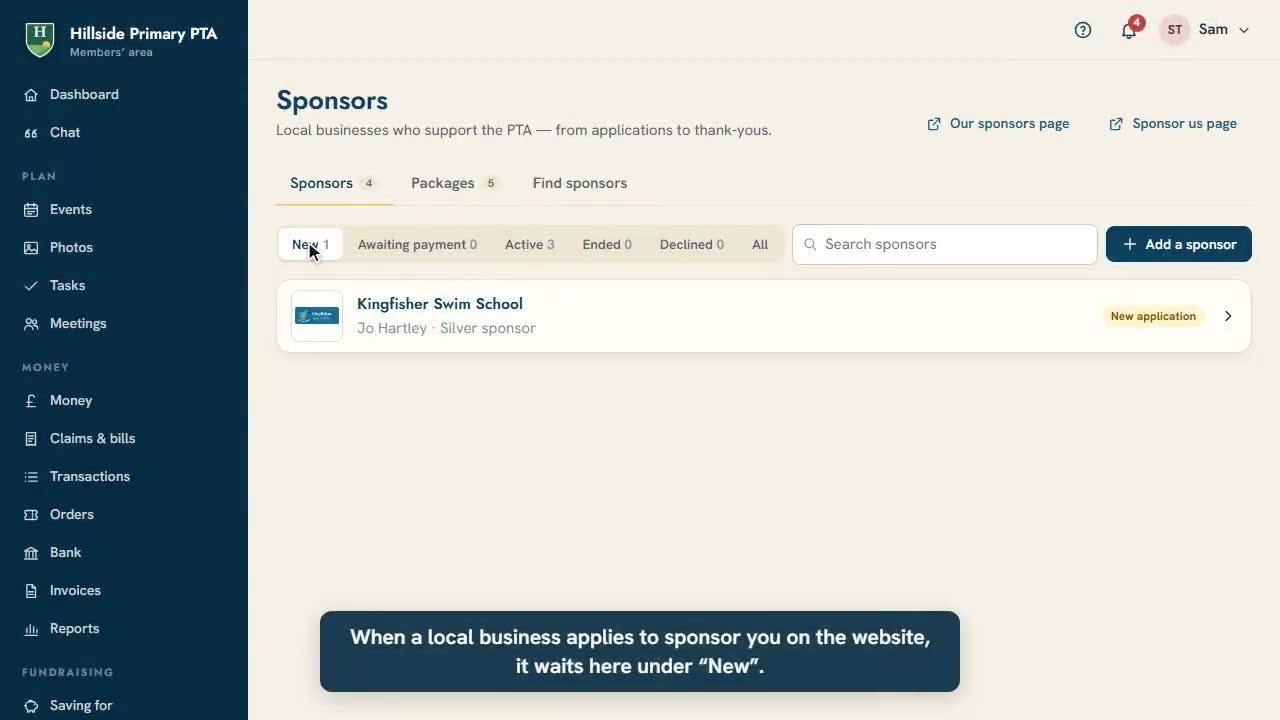
Sponsors and donationsApprove a business that wants to sponsor you, then see the donations made on your website.
0:39
Sponsors and donationsApprove a business that wants to sponsor you, then see the donations made on your website.
-
 1:18
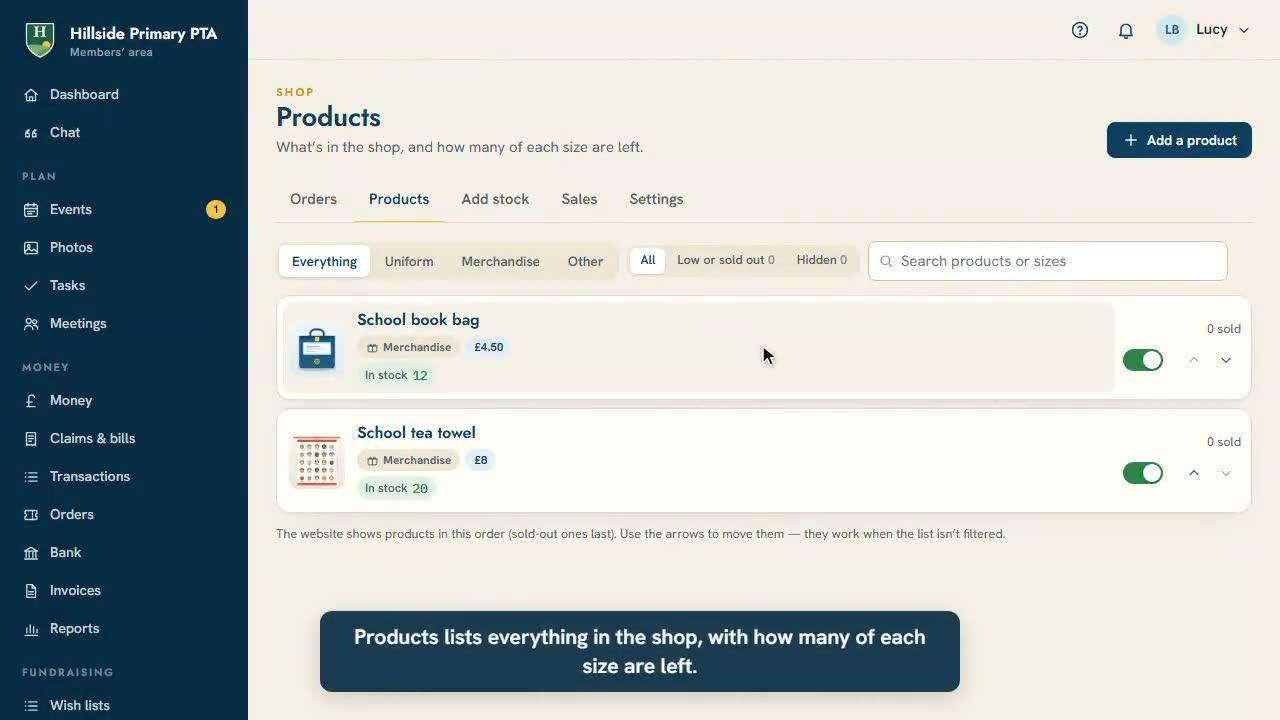
Sell uniform and more in the shopAdd pre-loved uniform with its sizes, stock and a photo, and see it in the shop on your website.
1:18
Sell uniform and more in the shopAdd pre-loved uniform with its sizes, stock and a photo, and see it in the shop on your website.
-
 0:53
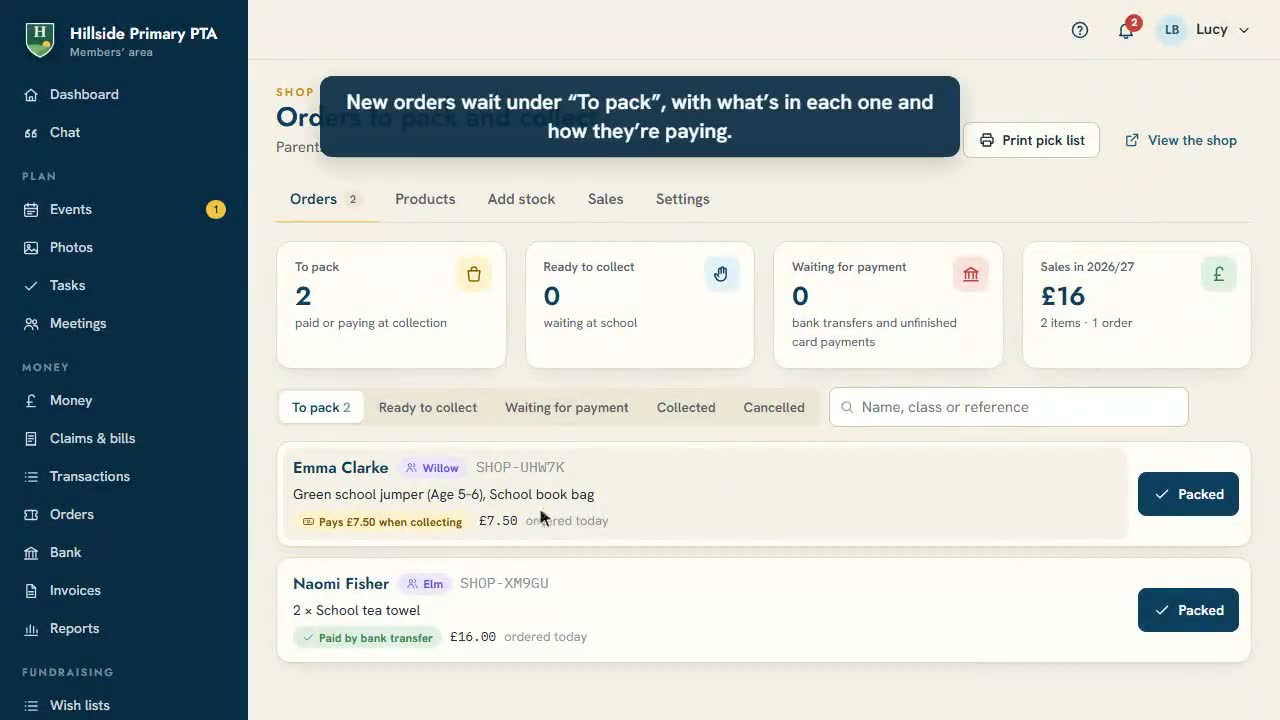
Pack and hand over shop ordersPrint the pick list, pack an order (the parent is emailed), then hand it over and take the cash.
0:53
Pack and hand over shop ordersPrint the pick list, pack an order (the parent is emailed), then hand it over and take the cash.
-
 1:27
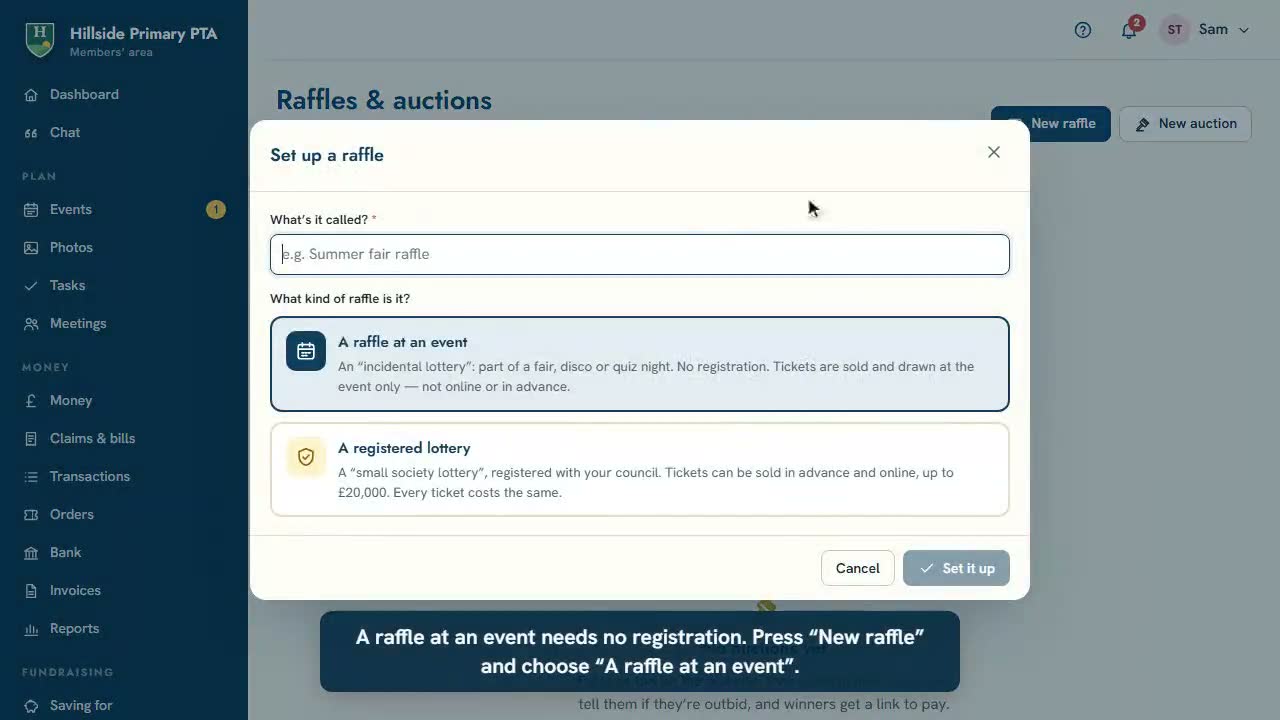
Run a raffle at your eventSet up a raffle at an event, add the prizes, record the tickets sold on the day, then draw the winners on a big screen.
1:27
Run a raffle at your eventSet up a raffle at an event, add the prizes, record the tickets sold on the day, then draw the winners on a big screen.
-
 1:24
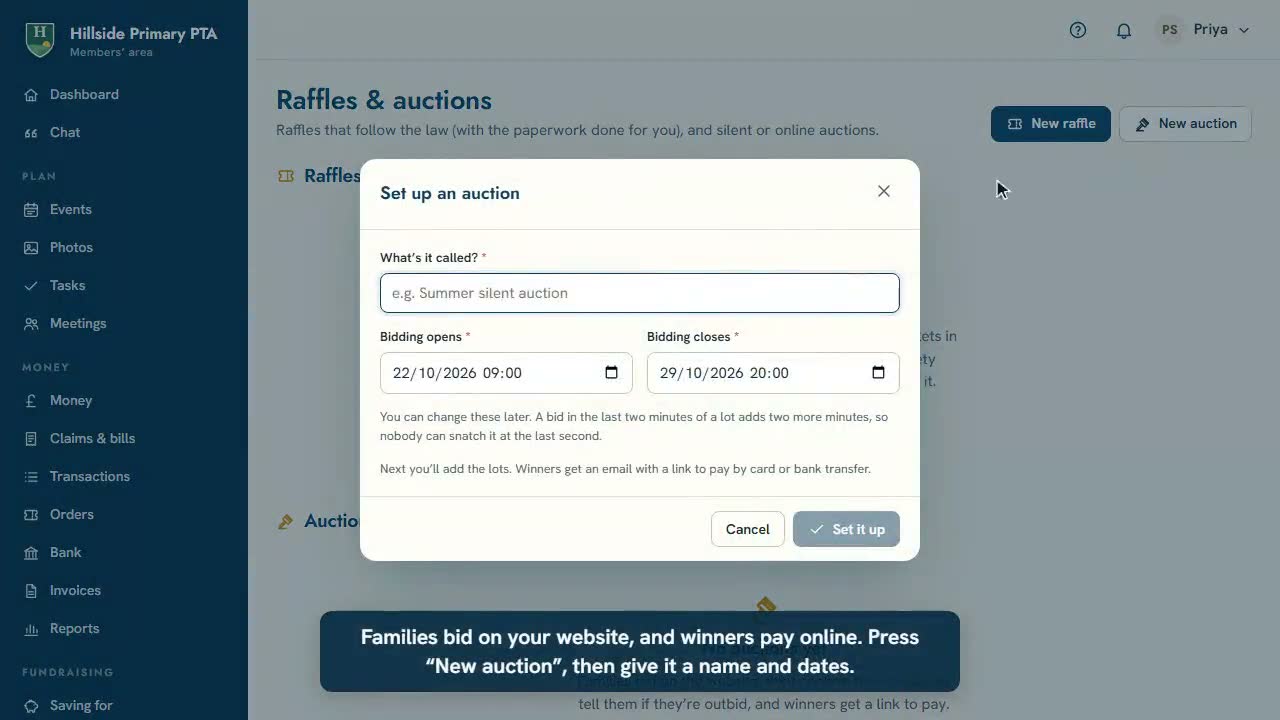
Hold an online auctionAdd the lots with photos and starting bids, put the auction on your website, then see the winners and mark lots as paid.
1:24
Hold an online auctionAdd the lots with photos and starting bids, put the auction on your website, then see the winners and mark lots as paid.
-
 1:27
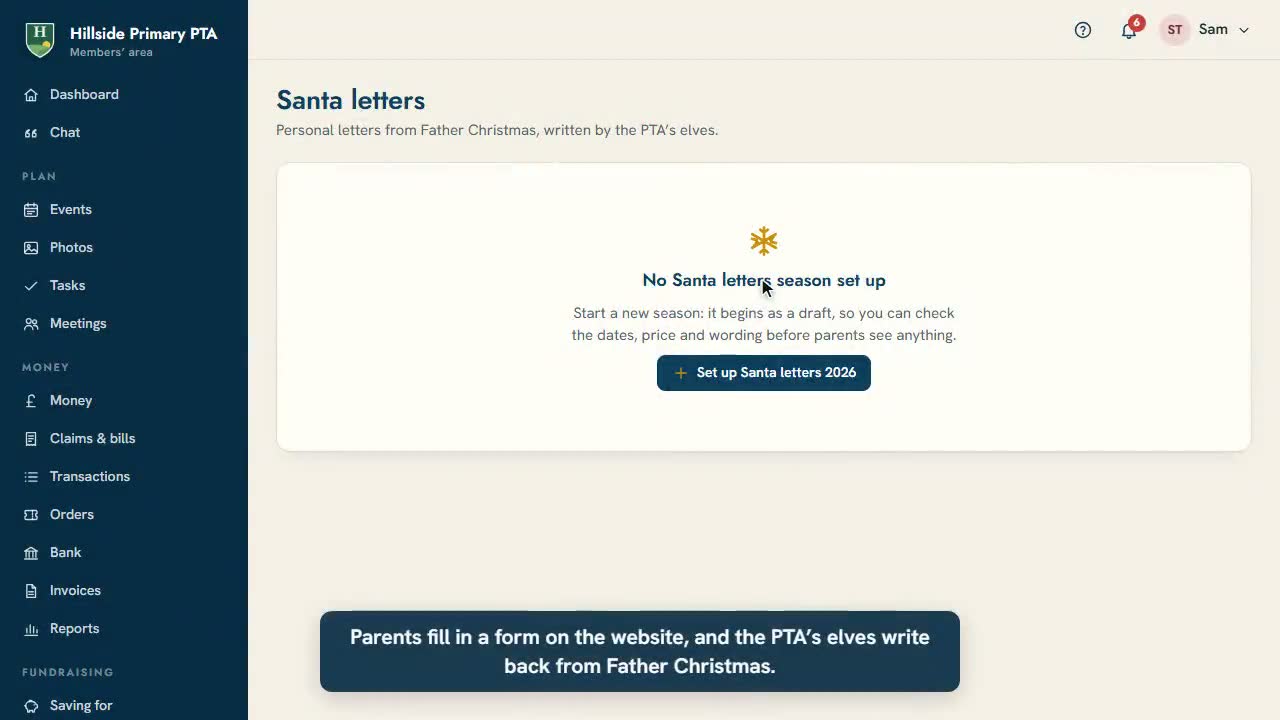
Santa letters: set up and share the formSet up this year’s Santa letters: dates, price, delivery, wording and the privacy date, then open the postbox.
1:27
Santa letters: set up and share the formSet up this year’s Santa letters: dates, price, delivery, wording and the privacy date, then open the postbox.
-
 1:08
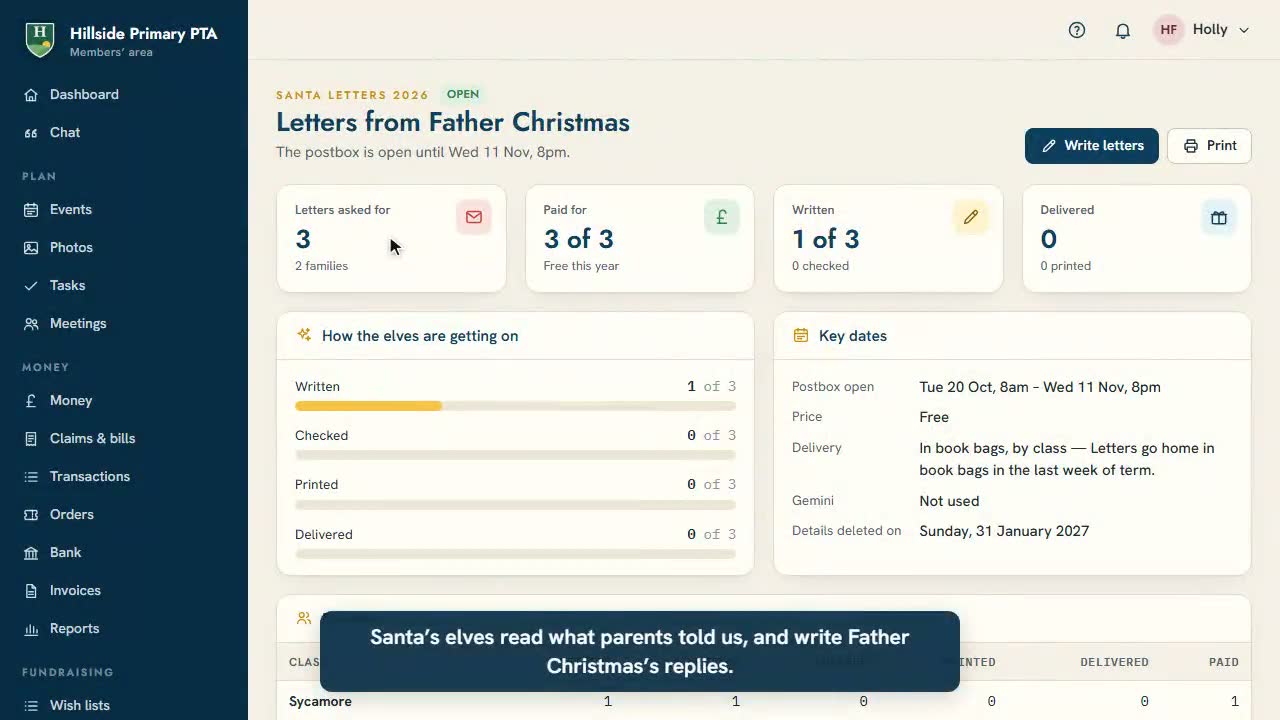
Writing the Santa lettersFor Santa’s elves: read what parents told us, draft each letter, check each other’s, then print them.
1:08
Writing the Santa lettersFor Santa’s elves: read what parents told us, draft each letter, check each other’s, then print them.
-
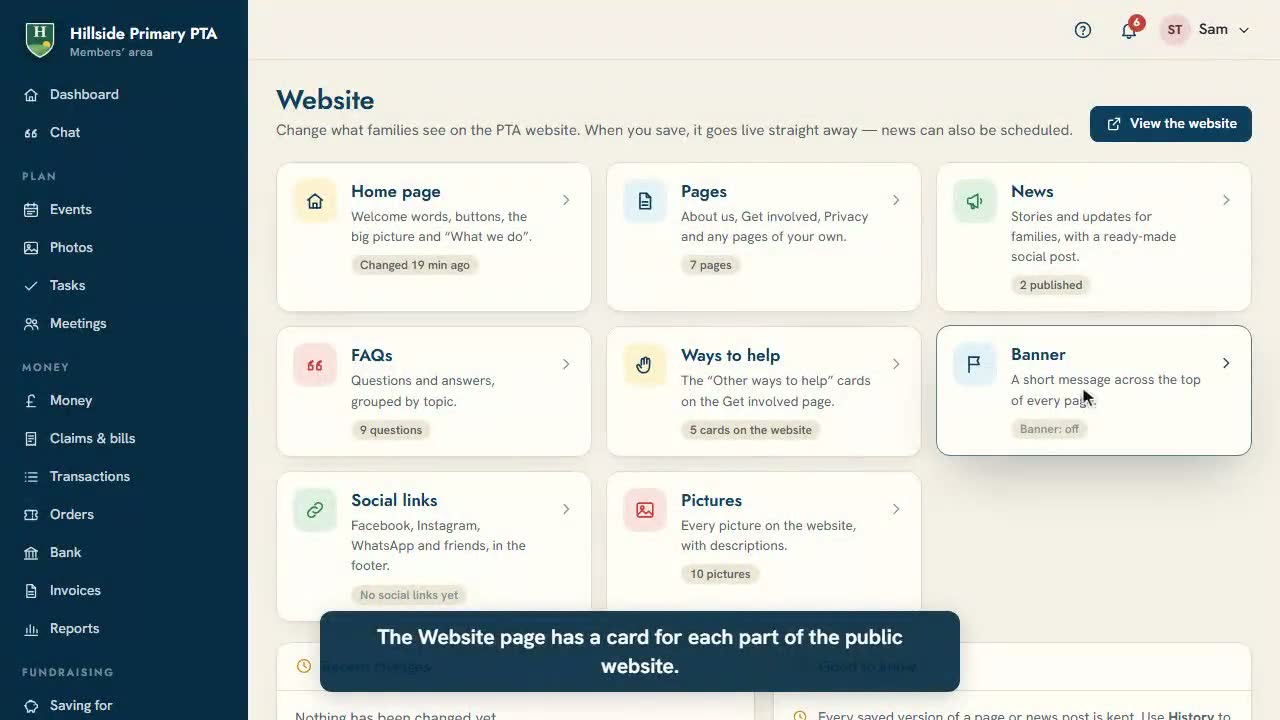 1:02
Change the website’s words and picturesThe Website page, the home page editor with its live preview, saving, and seeing the result.
1:02
Change the website’s words and picturesThe Website page, the home page editor with its live preview, saving, and seeing the result.
-
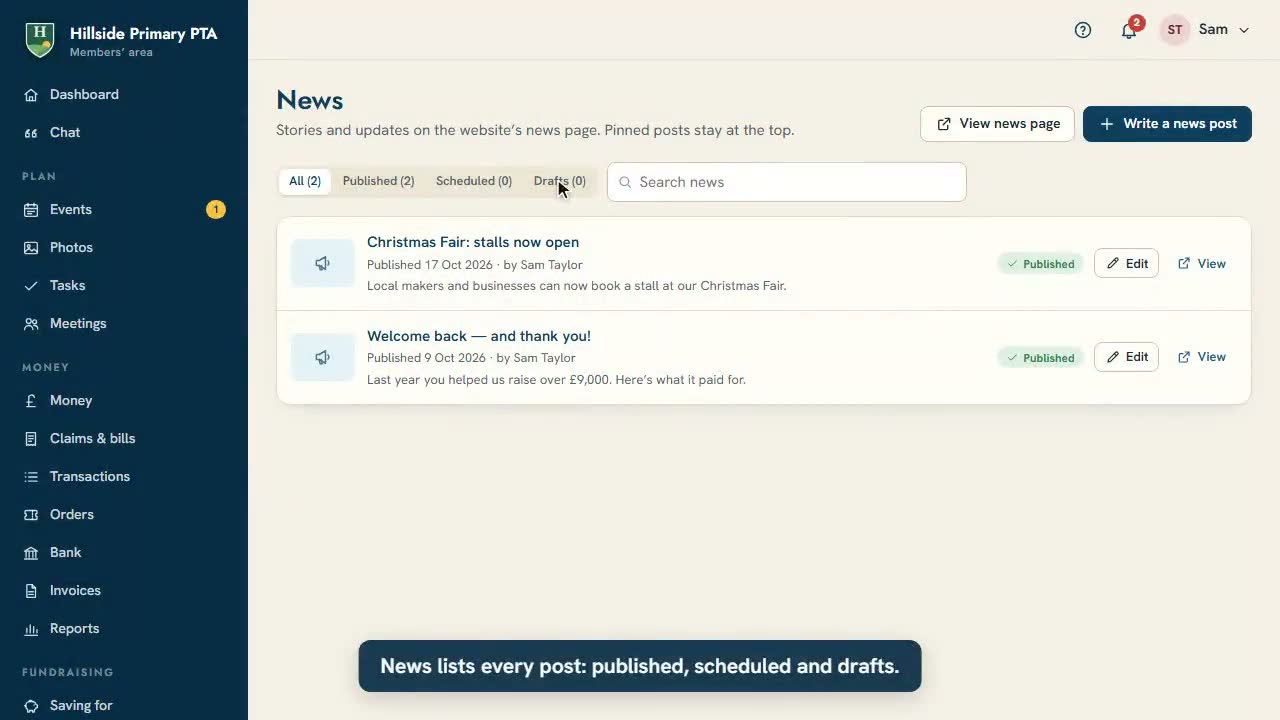 1:22
Post news and a bannerWrite a news post with a cover picture, publish it or schedule it, and put a banner across every page.
1:22
Post news and a bannerWrite a news post with a cover picture, publish it or schedule it, and put a banner across every page.
-
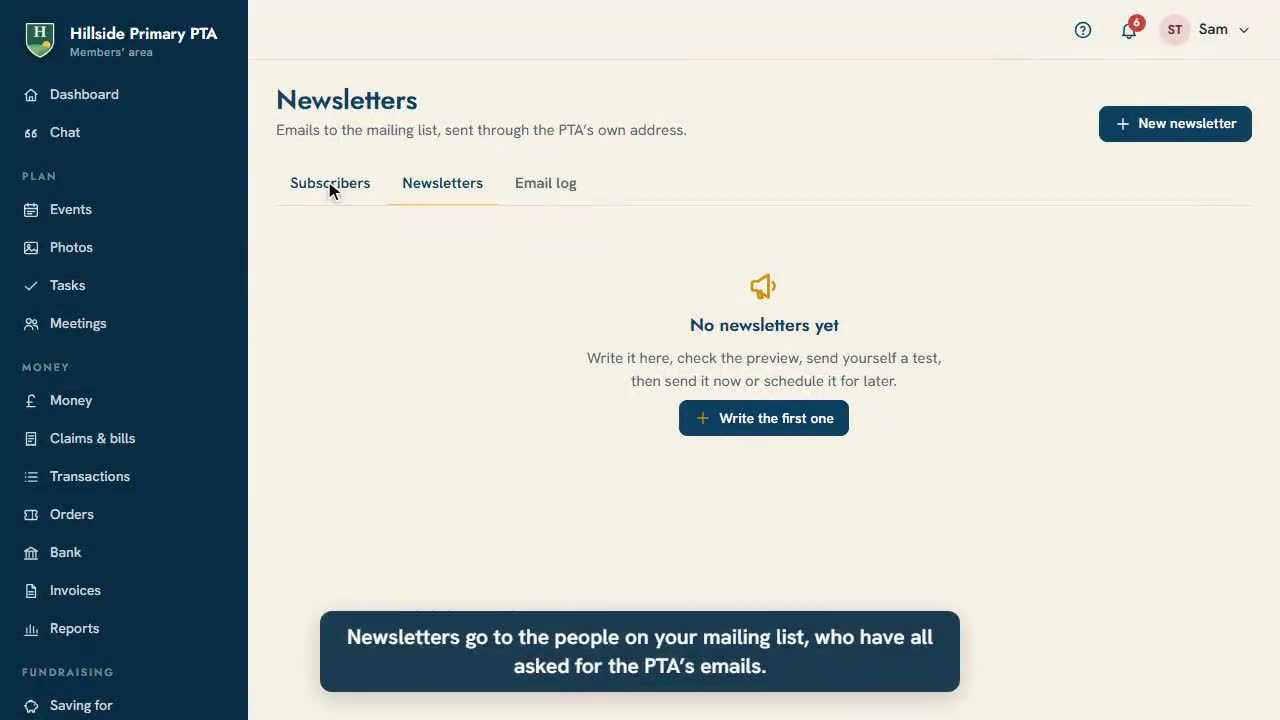 1:12
Send a newsletterWrite a newsletter, add your upcoming events, choose which classes get it, check the preview and send yourself a test.
1:12
Send a newsletterWrite a newsletter, add your upcoming events, choose which classes get it, check the preview and send yourself a test.
-
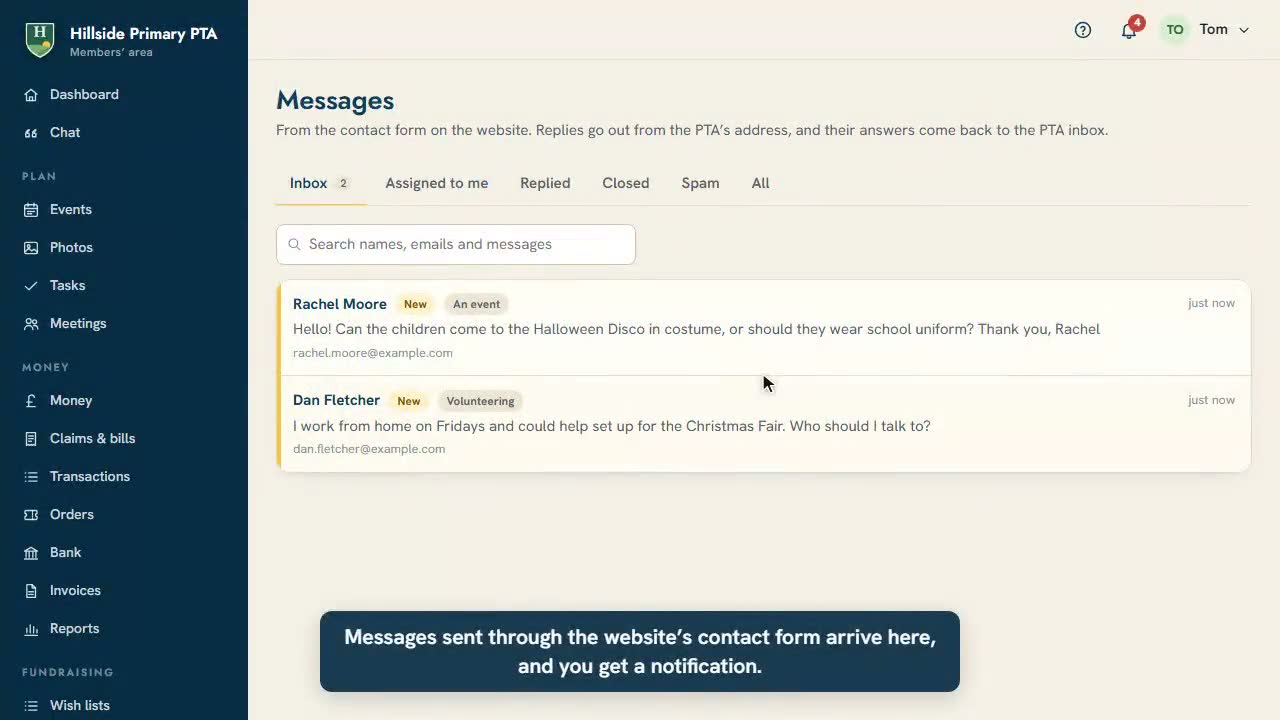 0:53
Reply to messages from the websiteMessages from the contact form: read them, give them to the right person, keep notes and reply by email.
0:53
Reply to messages from the websiteMessages from the contact form: read them, give them to the right person, keep notes and reply by email.
-
 0:44
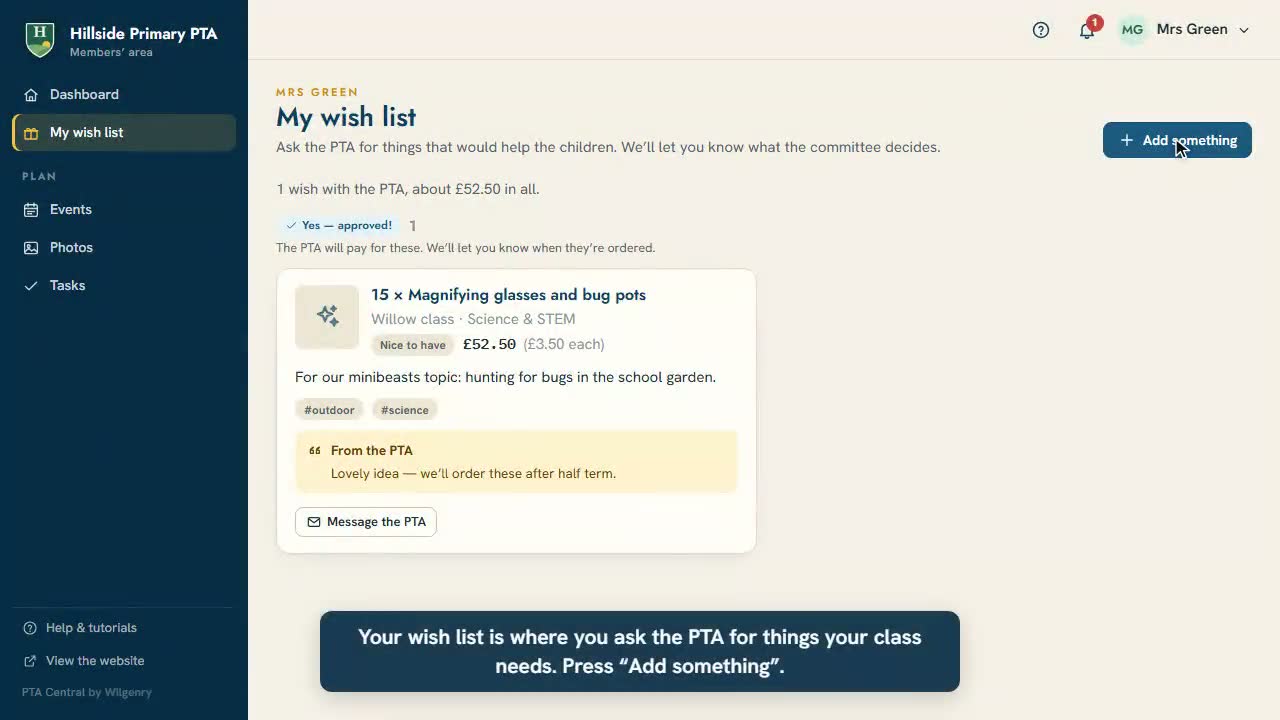
Teachers: add to your class wish listAsk the PTA for something your class needs, and see what the committee decides.
0:44
Teachers: add to your class wish listAsk the PTA for something your class needs, and see what the committee decides.
-
 0:46
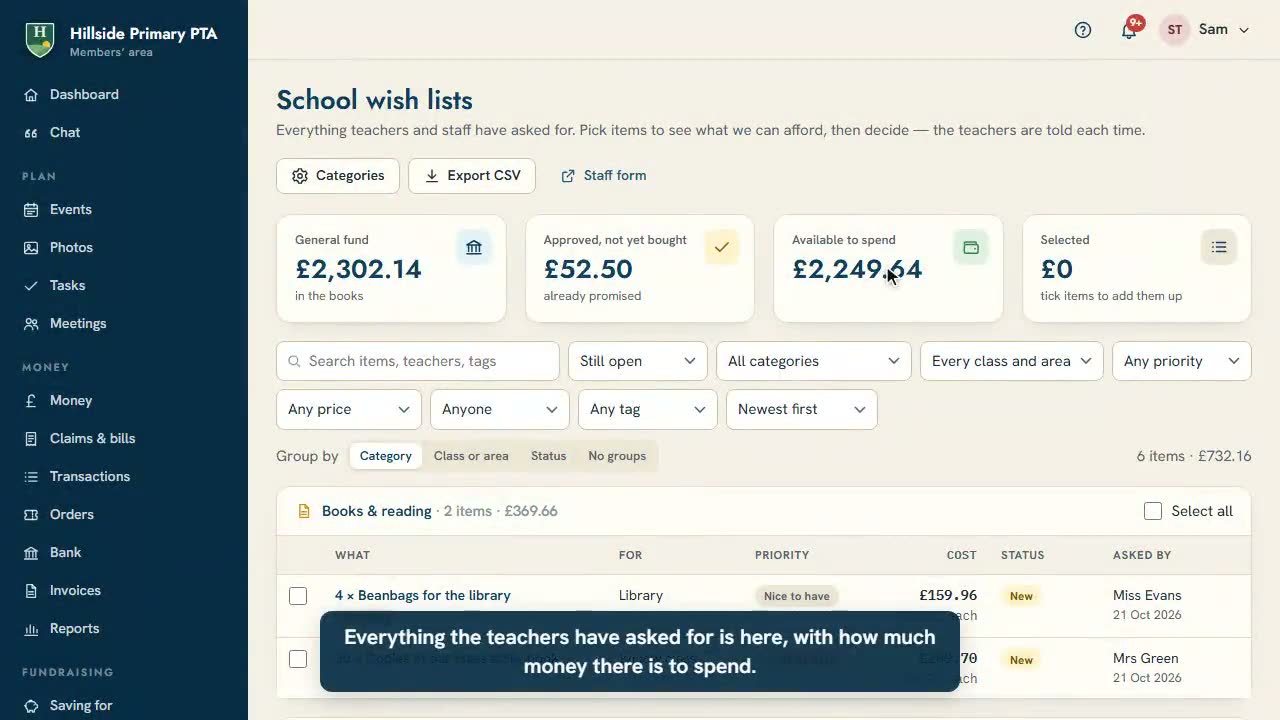
Choose what to buy from the wish listsSee every class’s wishes, add them up against your budget, approve them and mark them as bought.
0:46
Choose what to buy from the wish listsSee every class’s wishes, add them up against your budget, approve them and mark them as bought.
-
 1:06
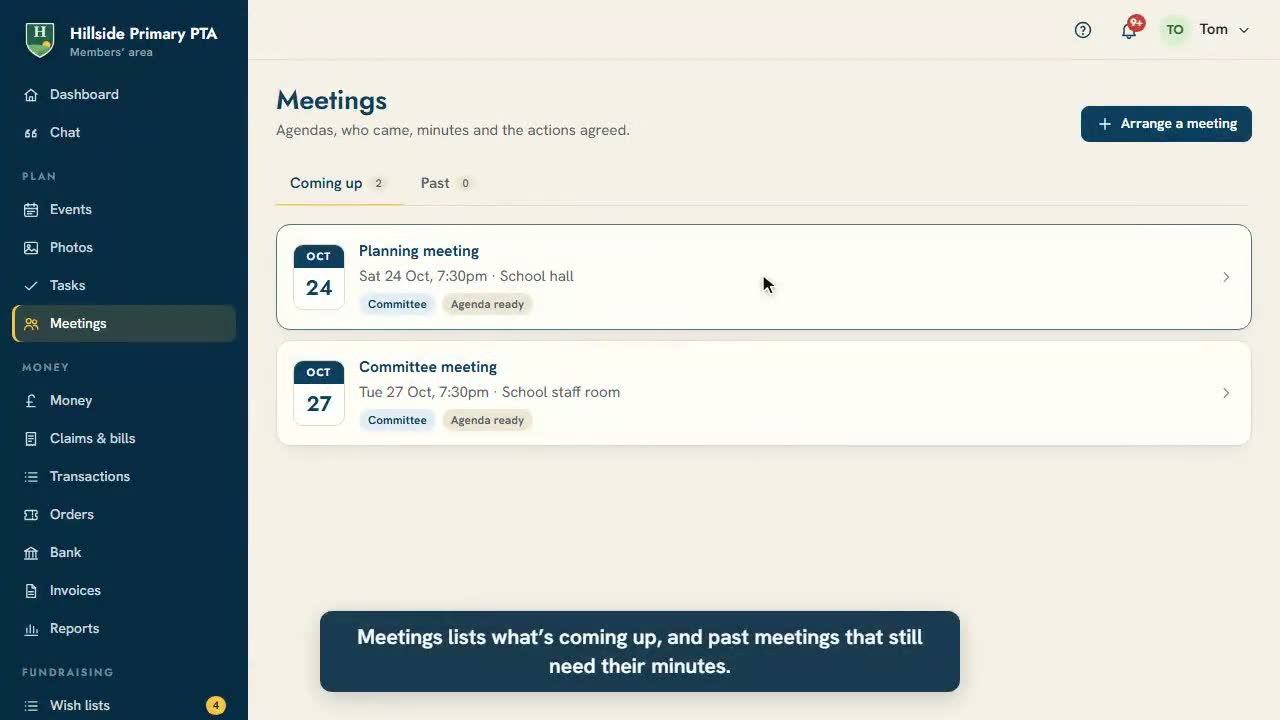
Meetings: agenda, minutes and actionsArrange a meeting, email the agenda, keep the register, write the minutes and record the actions agreed.
1:06
Meetings: agenda, minutes and actionsArrange a meeting, email the agenda, keep the register, write the minutes and record the actions agreed.
-
 0:57
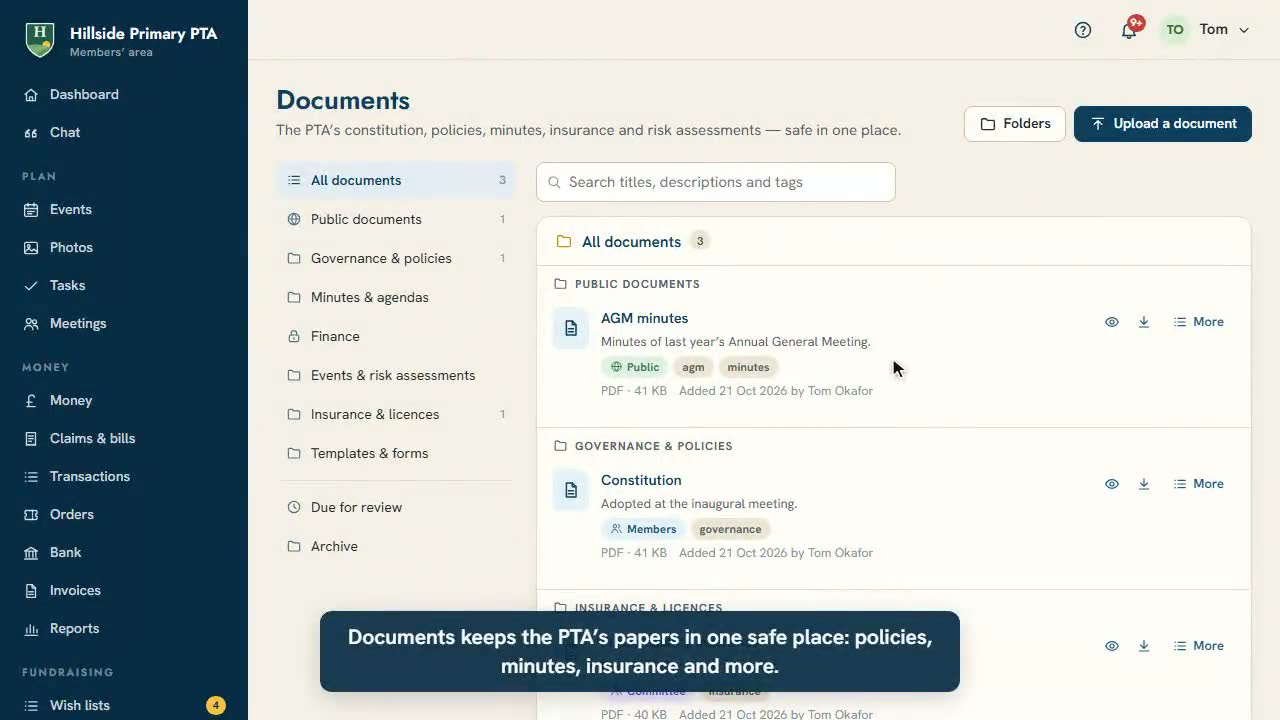
Share documents safelyFolders and who can see them, uploading a document, review dates, and keeping private papers private.
0:57
Share documents safelyFolders and who can see them, uploading a document, review dates, and keeping private papers private.
-
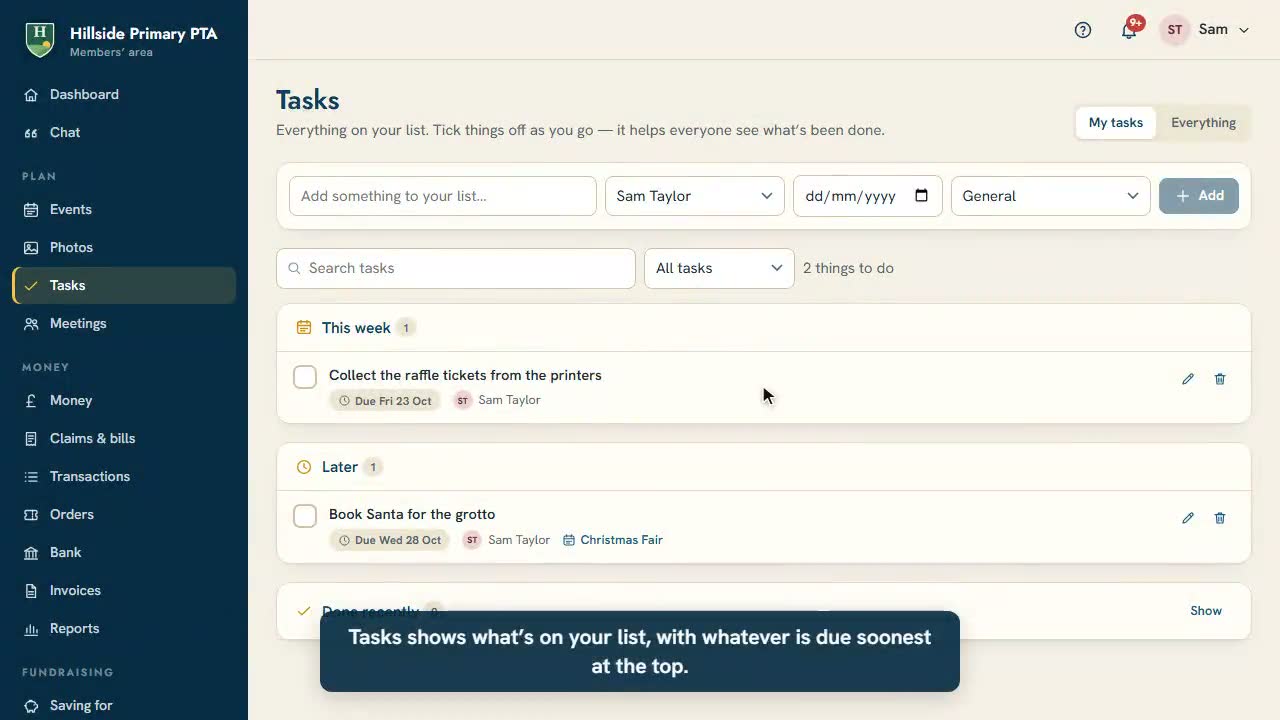 0:58
Tasks and the charity checklistYour task list, adding and ticking off tasks, everything the PTA has on the go, and the charity checklist.
0:58
Tasks and the charity checklistYour task list, adding and ticking off tasks, everything the PTA has on the go, and the charity checklist.
-
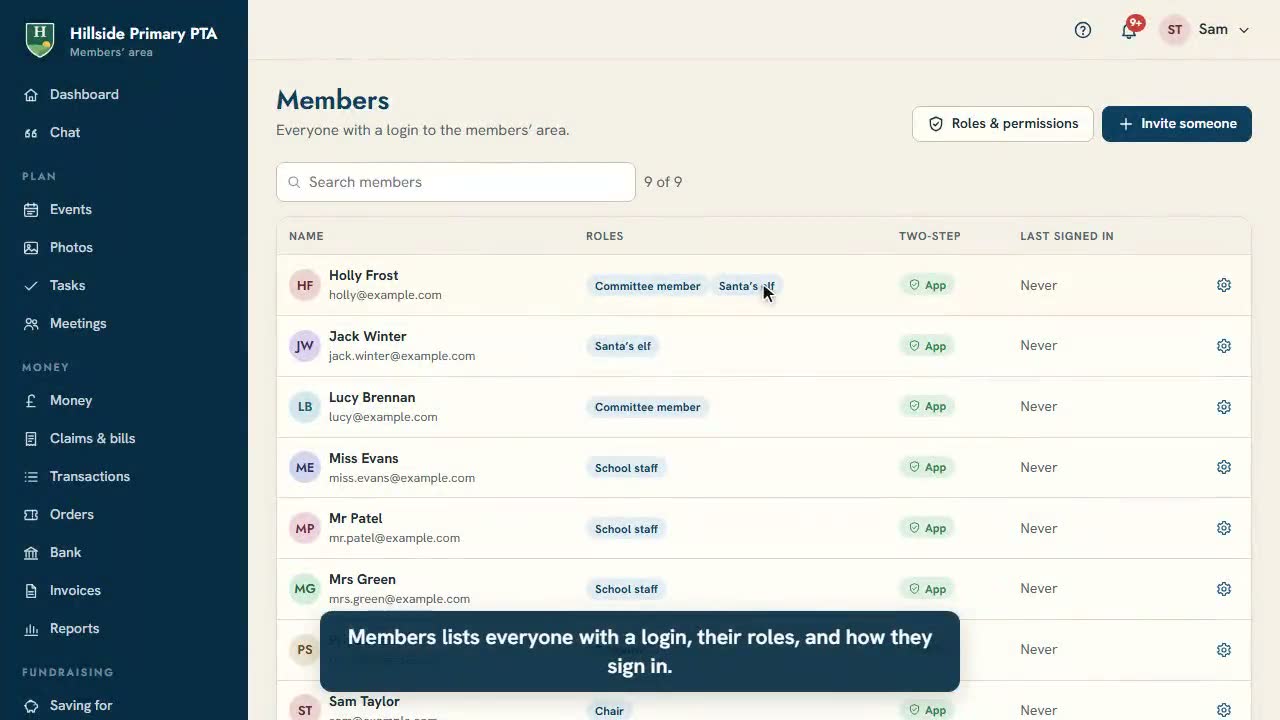 1:06
Invite people and choose what they can doInvite someone to the members’ area, give them roles, change roles later, and see what each role allows.
1:06
Invite people and choose what they can doInvite someone to the members’ area, give them roles, change roles later, and see what each role allows.
-
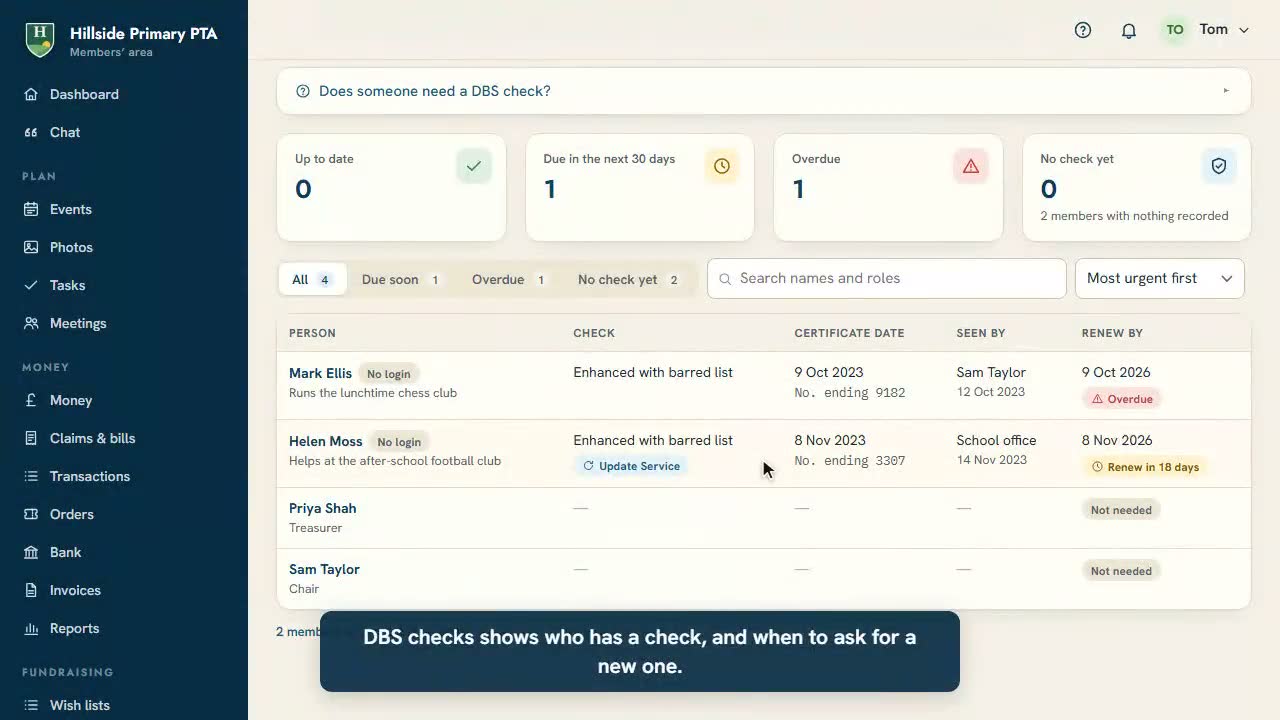 1:12
Keep track of DBS checksRecord who has a DBS check without keeping the certificate: the type, the date, the last 4 digits and who saw it, with a renew-by date.
1:12
Keep track of DBS checksRecord who has a DBS check without keeping the certificate: the type, the date, the last 4 digits and who saw it, with a renew-by date.
-
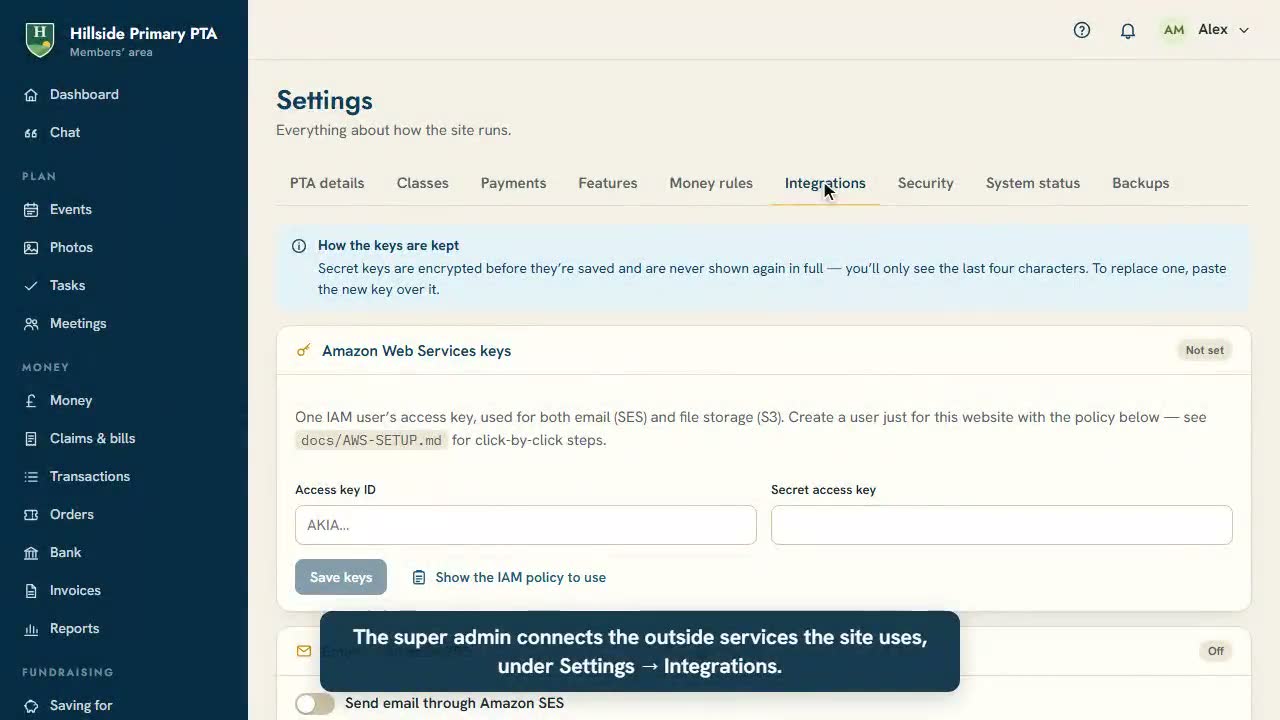 1:10
Connect email, storage, AI and paymentsFor the super admin: the keys for Amazon email and storage, Gemini and Stripe, and the System status page.
1:10
Connect email, storage, AI and paymentsFor the super admin: the keys for Amazon email and storage, Gemini and Stripe, and the System status page.
-
 0:43
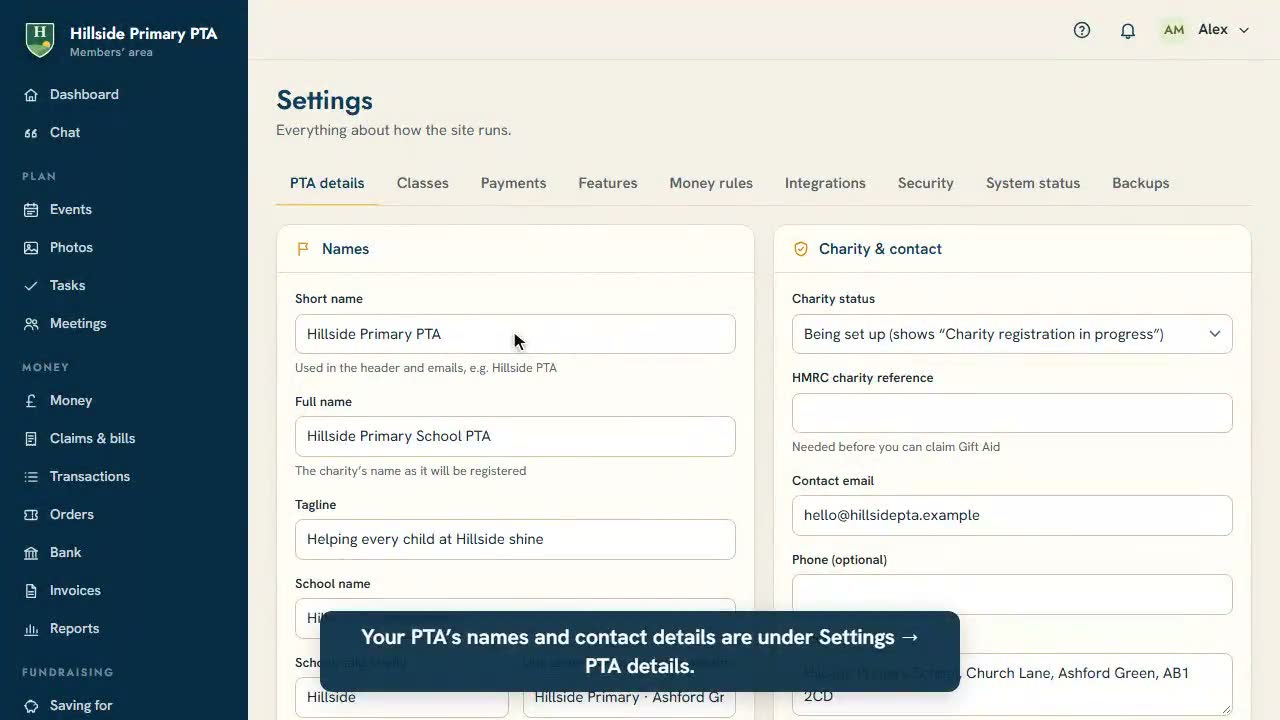
Your PTA’s name, logo and coloursThe PTA’s names and contact details, uploading your logo, and the colours the PTA Central app uses.
0:43
Your PTA’s name, logo and coloursThe PTA’s names and contact details, uploading your logo, and the colours the PTA Central app uses.
Still stuck? We’re here to help
Email hello@ptacentral.co.uk or use the contact form. A real person reads every message.